SignalBox Setup Guide for HubSpot
Last updated: July 30, 2026
SignalBox is a communication-intelligence app for HubSpot. It connects your HubSpot portal to your business communication channels: a mailbox (Gmail, Microsoft 365, or IMAP), and optionally LinkedIn. SignalBox analyzes those conversations for relationship signals and writes that intelligence back onto your HubSpot contact, company, and deal records. This guide explains how to install, configure, use, disconnect, and uninstall the integration.
What you'll need
- A HubSpot account (Free, Starter, Professional, or Enterprise).
- A user who can install apps in your HubSpot portal (Super Admin, or an admin who can approve app installs).
- A mailbox to sync: Gmail / Google Workspace, Microsoft 365, or an IMAP-enabled mailbox.
- Optional: a LinkedIn account, if you want SignalBox to capture LinkedIn conversations alongside email. LinkedIn is not required to install or run SignalBox. It can be connected during setup or added at any time afterwards.
Install the app
- Create a SignalBox account at app.signalbox.tendigits.com and start the onboarding wizard.
- On the Connect CRM step, click Connect HubSpot.
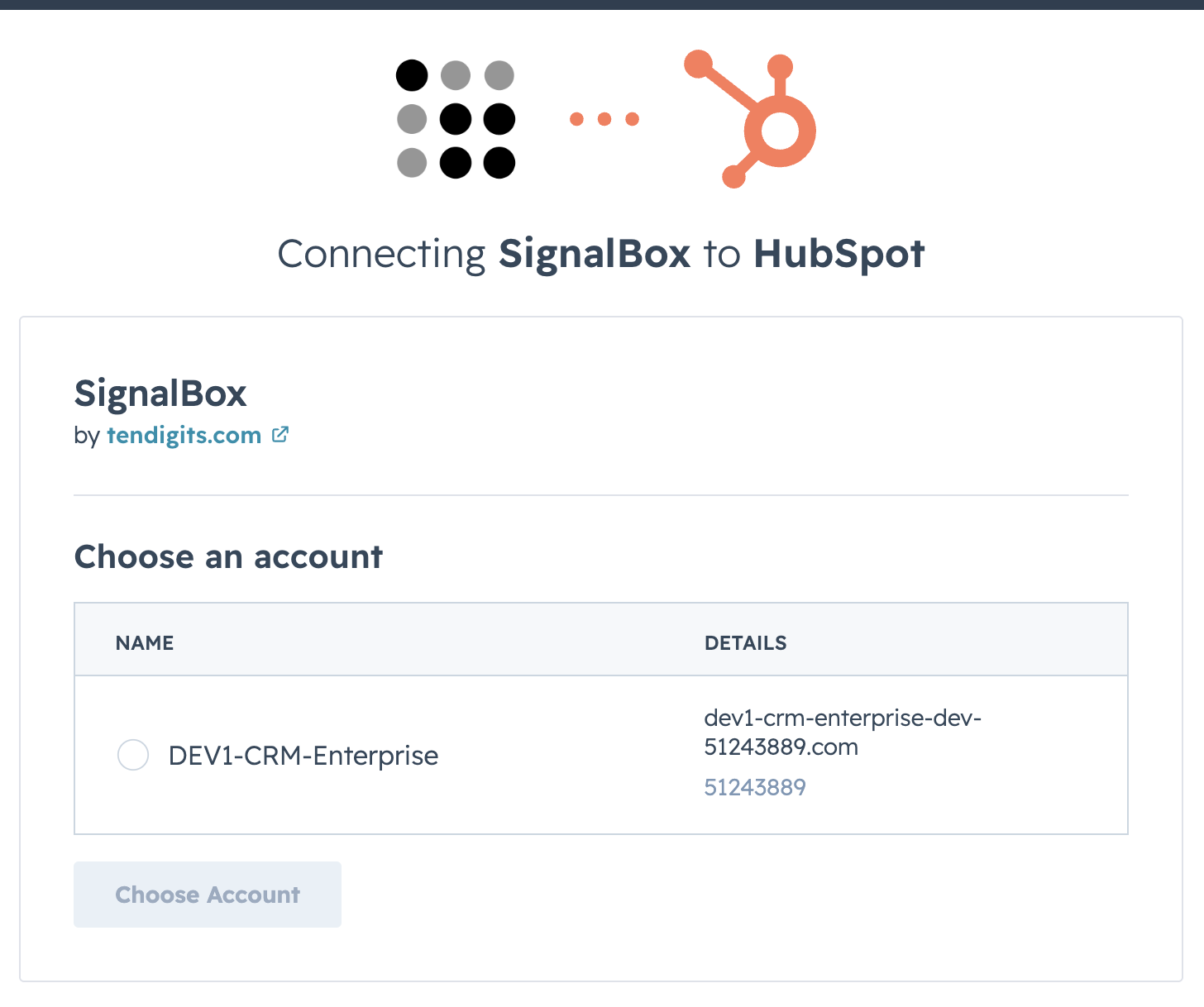
- You'll be redirected to HubSpot's standard OAuth consent screen. Choose the HubSpot portal you want to connect.
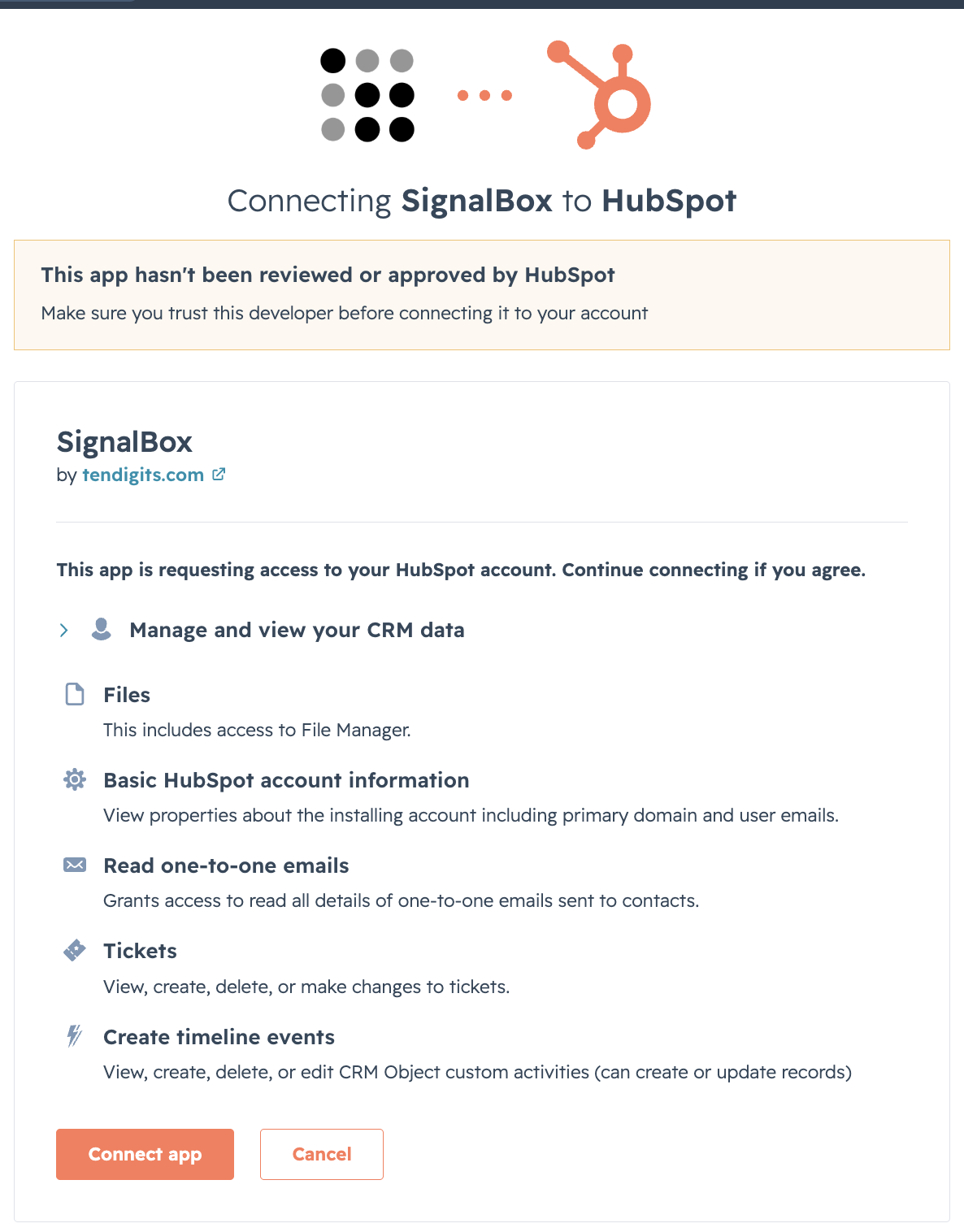
- Review the requested permissions (scopes), described below.
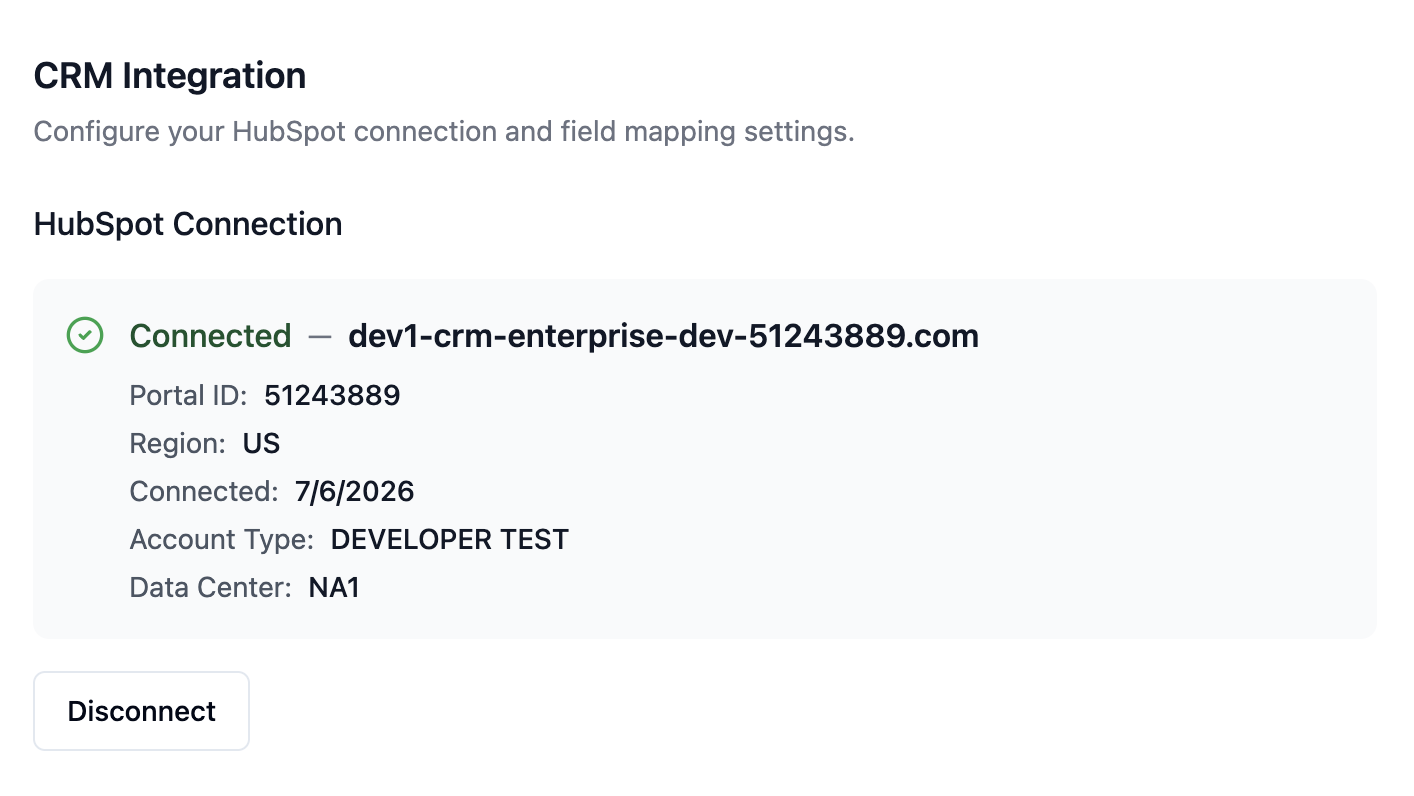
- Click Connect app to authorize. You'll be returned to SignalBox, which confirms the connected portal name, ID, and region, and begins syncing your contacts and owners.
Permissions (scopes) requested
Required for every install:
- oauth: manage the OAuth token lifecycle (request and refresh access tokens, and revoke them on disconnect).
- crm.objects.contacts.read: match incoming email senders against your existing HubSpot contacts.
- crm.objects.contacts.write: record the latest email context on the contact (for example, last email received, subject, and summary).
Optional, requested only for the features you enable:
- timeline: log email activity as engagement events on the CRM timeline.
- crm.objects.companies.read / .write: match senders to companies by email domain.
- crm.objects.deals.read / .write: associate email context with open deals.
- crm.objects.owners.read: attribute activity to the correct record owner.
- files: attach supported email attachments to HubSpot records.
- tickets, sales-email-read, and read access to custom objects, quotes, line items, invoices, and subscriptions. These are used by specific intelligence features when turned on.
SignalBox uses HubSpot's standard OAuth authorization-code flow. You are never asked to copy or paste tokens, and SignalBox refreshes access tokens automatically in the background.
Not a Super Admin? If the person installing isn't a HubSpot Super Admin, SignalBox can send an authorization request to a portal admin from this same screen instead of blocking setup.
Configure the app
After HubSpot is connected, finish setup in SignalBox:
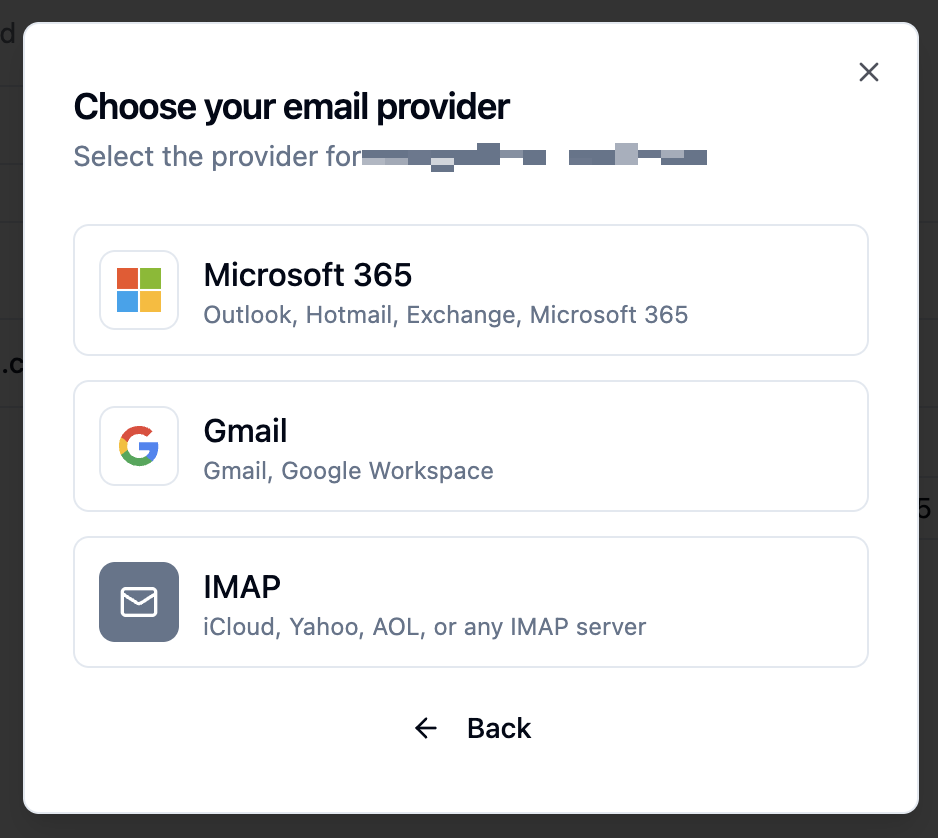
- Connect a mailbox. Go to Mailboxes → Add Mailbox and choose your provider:
- Gmail / Google Workspace: sign in with Google and grant access. SignalBox reads your messages to analyze relationship activity and can create, send, and discard AI-drafted replies in your Drafts folder. SignalBox never permanently deletes your email.
- Microsoft 365: sign in with Microsoft and grant access via Microsoft Graph.
- IMAP: enter your mailbox address and IMAP server details (use an app-specific password where your provider requires one).
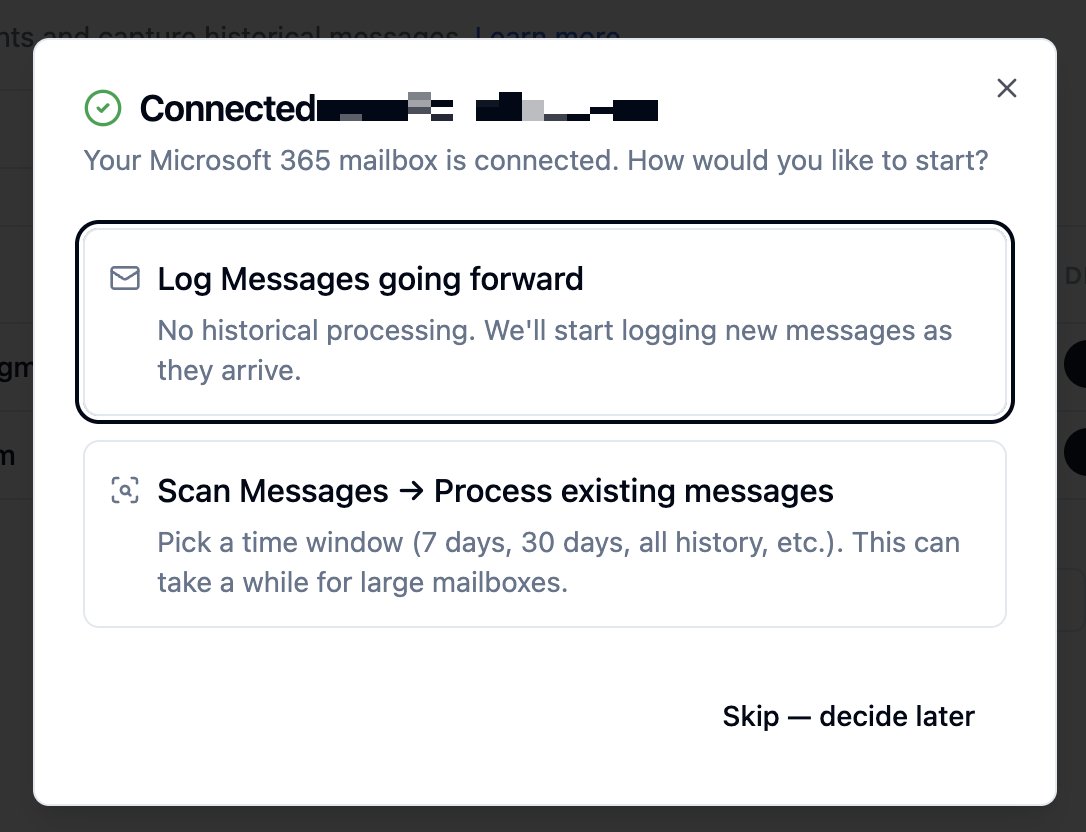
- Choose how the first sync runs. Select scan existing messages to process recent mail immediately, or log going forward to start from new mail only.
- Connect LinkedIn (optional). Go to Settings → LinkedIn and connect your LinkedIn account. SignalBox then captures your LinkedIn DMs and InMail and logs them to the matching HubSpot contact, company, and deal, the same way it handles email. A few things worth knowing:
- This step is optional. SignalBox installs and runs on email alone, and skipping it does not affect the HubSpot integration.
- SignalBox acts only through the LinkedIn account you connect, and only within what you can already do from your own LinkedIn session. It does not create accounts, send connection requests you did not authorize, or access anything you cannot access yourself.
- You remain responsible for your use of LinkedIn and for compliance with LinkedIn's terms. SignalBox is not affiliated with, endorsed by, or sponsored by LinkedIn.
- Set processing options (optional). Under SignalBox settings, choose sync frequency and which intelligence layers run (classification, entity extraction, sentiment, summarization).
- Confirm the connection. In SignalBox, your HubSpot portal shows as Connected with its portal ID and region, and your mailbox shows as Active with a logged-message count. If you connected LinkedIn, it shows as Connected under Settings → LinkedIn.
Use the app
Once connected, SignalBox works automatically:
- New email is matched against your HubSpot contacts and company domains (triage). If you connected LinkedIn, your LinkedIn DMs and InMail are matched to HubSpot records the same way.
- Matched messages are analyzed for sentiment, intent, reply-worthiness, and entities.
- Results are written back to HubSpot: contact properties are updated, and (if the timeline scope is granted) an engagement event is logged on the contact, company, and deal timelines. LinkedIn conversations are logged as engagements on the same records, so email and LinkedIn history sit together on one CRM timeline.
- The same intelligence appears in HubSpot on the SignalBox app cards on contact, company, and deal records, and in SignalBox's own signal feed for prioritized follow-up.
You can monitor sync health, throughput, and any errors from the SignalBox Pipelines and Mailboxes screens at any time.
Disconnect the app
To disconnect your HubSpot portal from SignalBox:
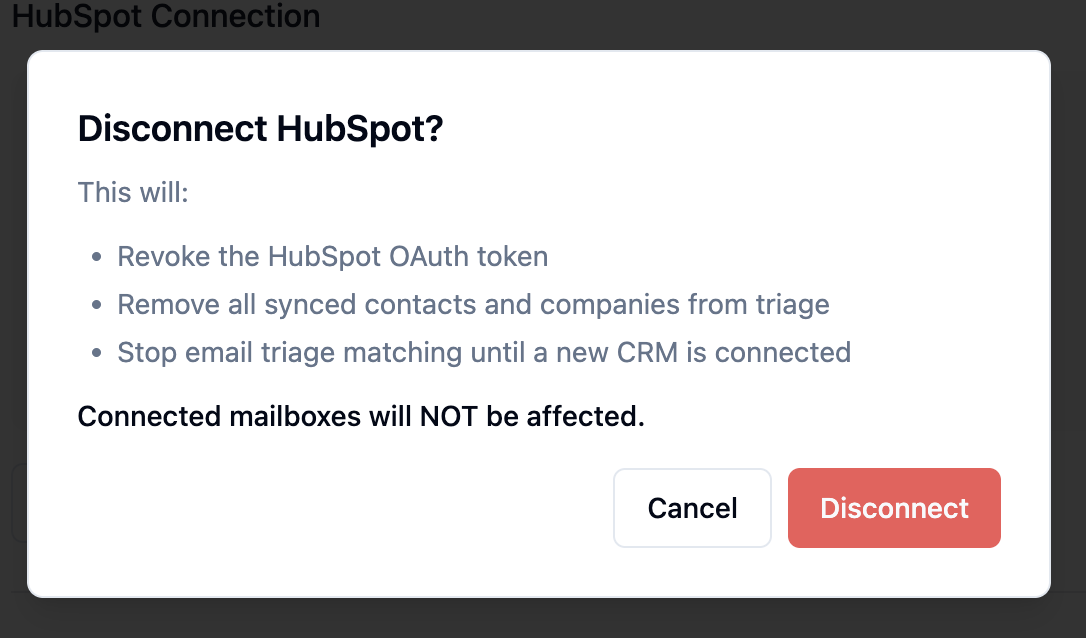
- In SignalBox, go to Settings → CRM (HubSpot).
- Click Disconnect next to your connected portal.
- Confirm.
Disconnecting stops all syncing and revokes SignalBox's HubSpot access tokens. This is non-destructive: contact properties and timeline engagements that SignalBox already created remain in your HubSpot account, and your mailbox data in HubSpot is unaffected.
Disconnecting LinkedIn. LinkedIn is disconnected separately, under Settings → LinkedIn. Disconnecting there stops LinkedIn capture and deletes the stored connection, and leaves your HubSpot and mailbox connections running. LinkedIn conversations already logged to HubSpot remain on your CRM records.
Uninstall the app
To fully remove SignalBox from your HubSpot account:
- In HubSpot, go to Settings → Integrations → Connected Apps.
- Find SignalBox and click Uninstall.
- Confirm.
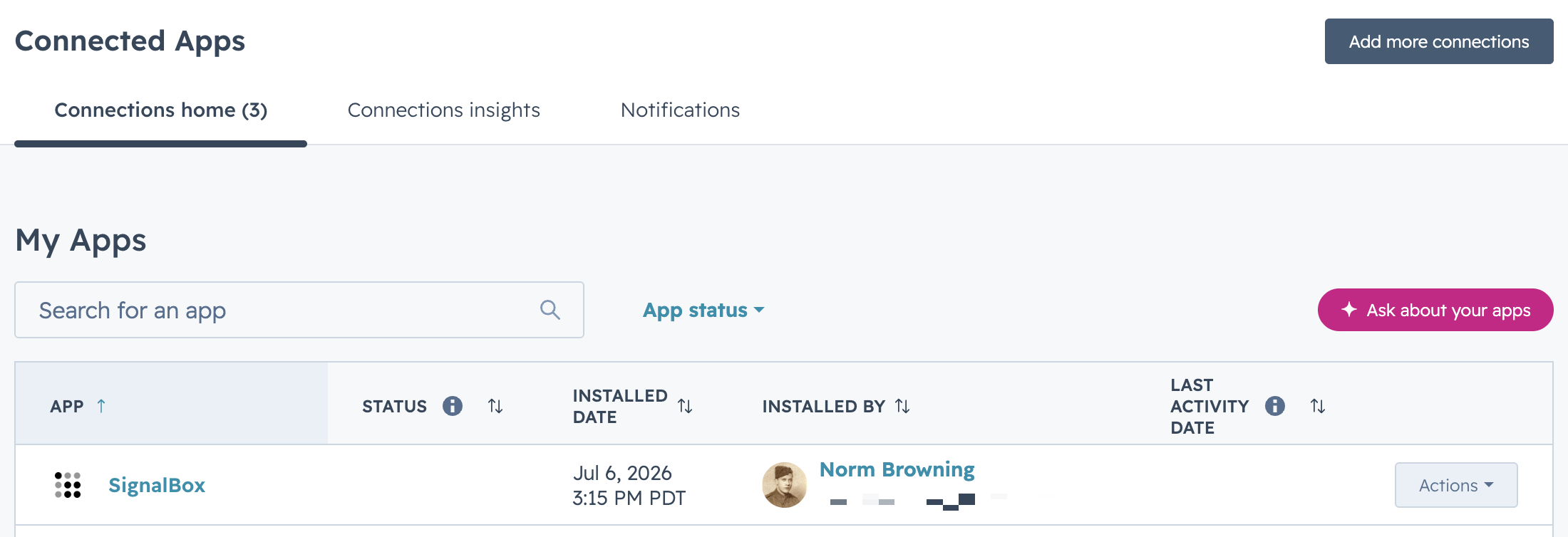
Uninstalling revokes the connection and stops all SignalBox activity for that portal. Records, properties, and timeline engagements SignalBox previously created are not deleted from HubSpot. For full steps, see HubSpot's guide on uninstalling an app.
Support
Support Team
hello@tendigits.com
See also our Privacy Policy and Terms of Service.